
The problem
Save 27 minutes a week on repeated text messages.
Preset keeps your most-used work texts ready inside Messages, so follow-ups, quotes, ETAs, pickup details, and scheduling replies go out in a few taps.
Profession presets
Start with templates that already fit the work.
Perfect for professionals. Preset templates are prebuilt for:
Sales Rep
Proposals, follow-ups, and next-step nudges.
Marketing Consultant
Approvals, assets, and campaign check-ins.
Recruiter
Candidate outreach, interviews, and offers.
Operations Coordinator
Schedules, ETAs, pickups, and job updates.
Account Manager
Reviews, renewals, approvals, and rollout follow-ups.
Client Service Coordinator
Bookings, updates, delays, and resolution follow-ups.
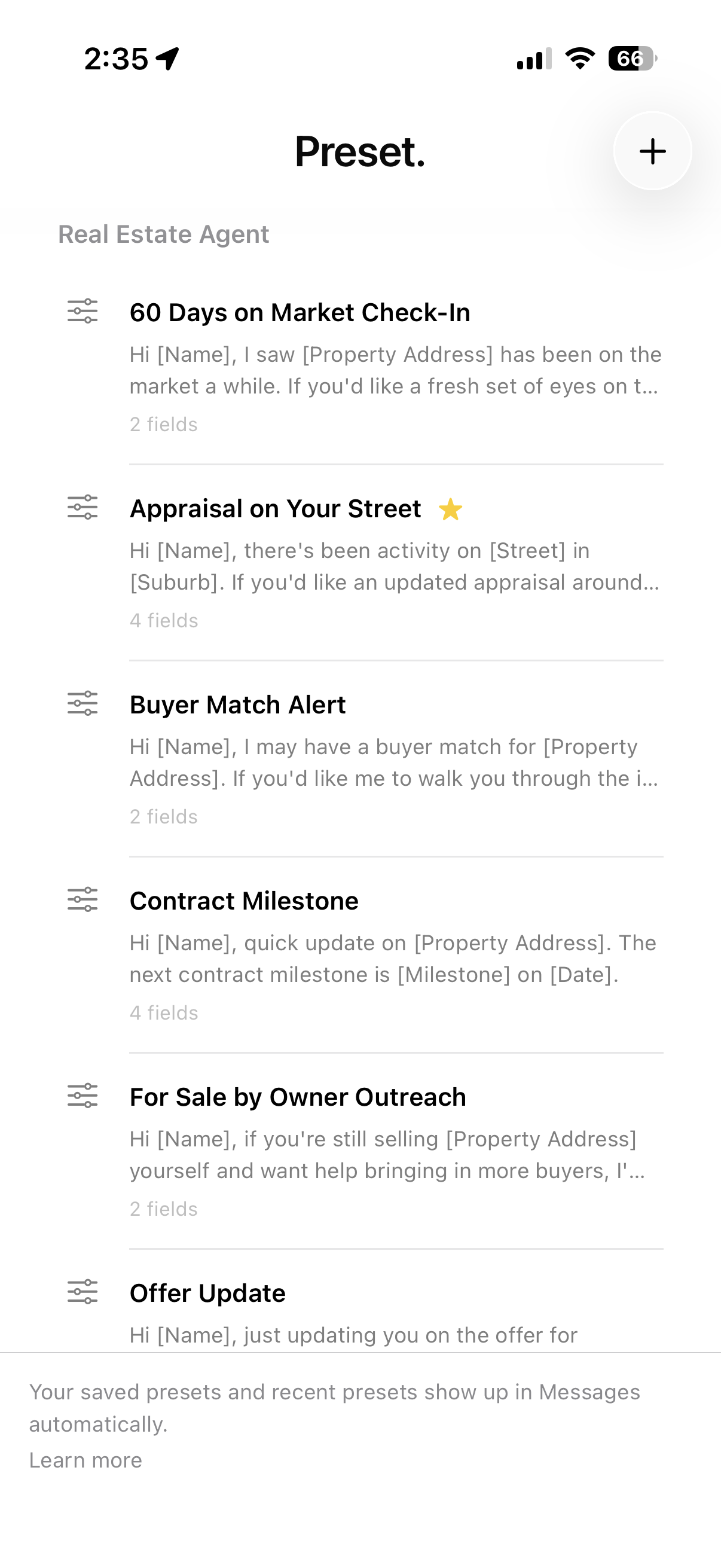
Real Estate Agent
Prospecting, buyer follow-ups, and active listing updates.
Finance Broker
Applications, documents, approvals, and settlement milestones.
Property Manager
Inspections, rent reminders, and maintenance scheduling.
Plumber
Bookings, ETAs, quotes, and invoice follow-ups.
Electrician
Site visits, shutdown reminders, and job completion texts.
Cleaner
Access, arrival windows, recurring bookings, and payment nudges.
Mechanic
Bookings, repair approvals, pickups, and service reminders.
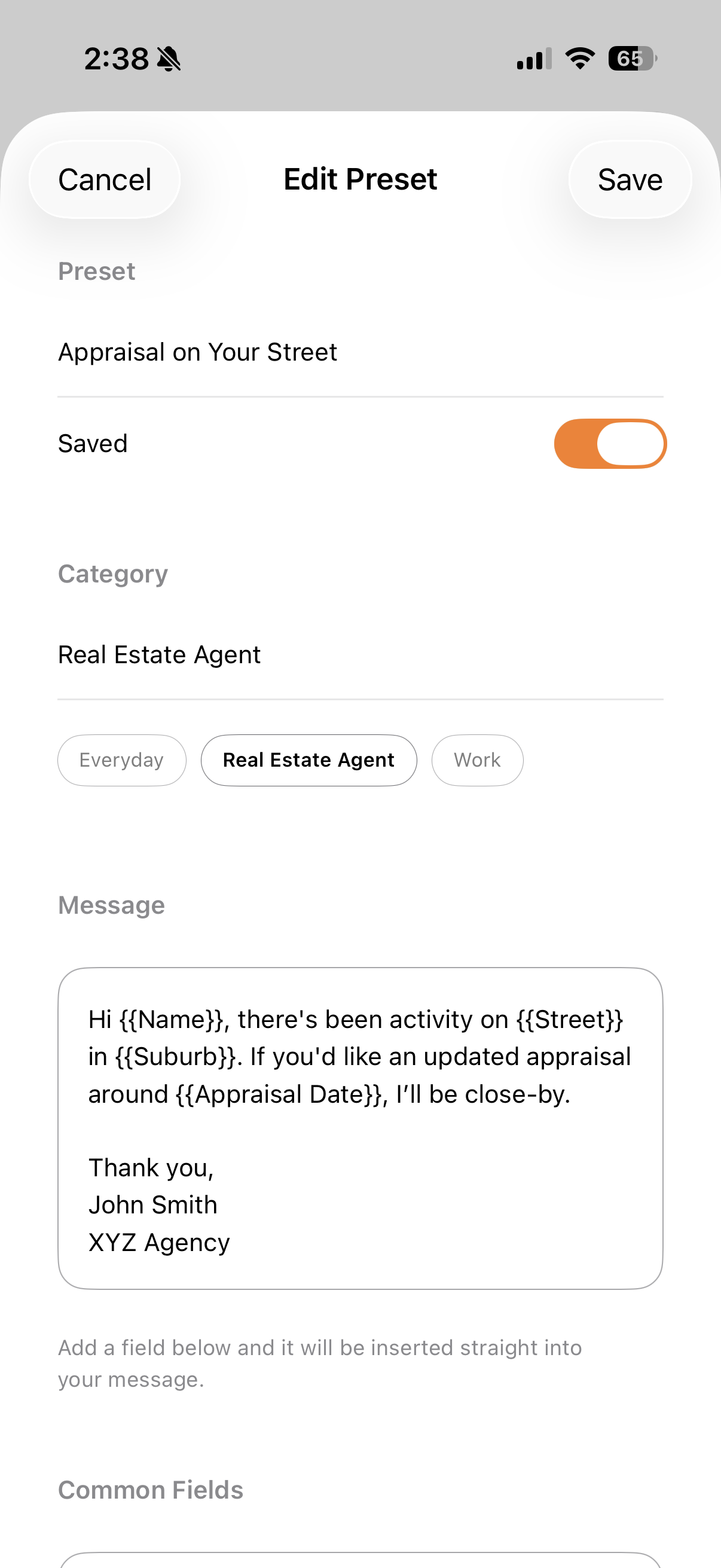
See the full flow in the order it actually happens.
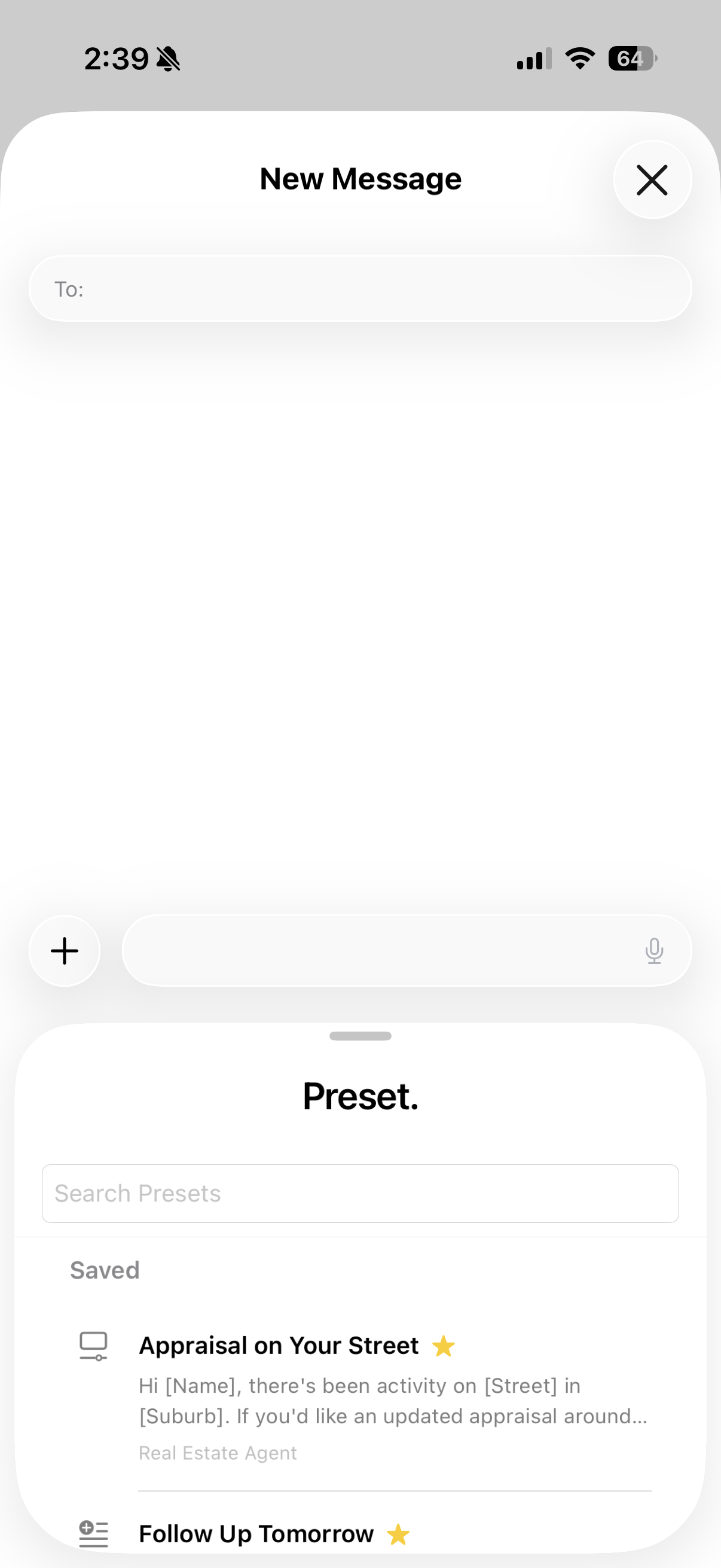
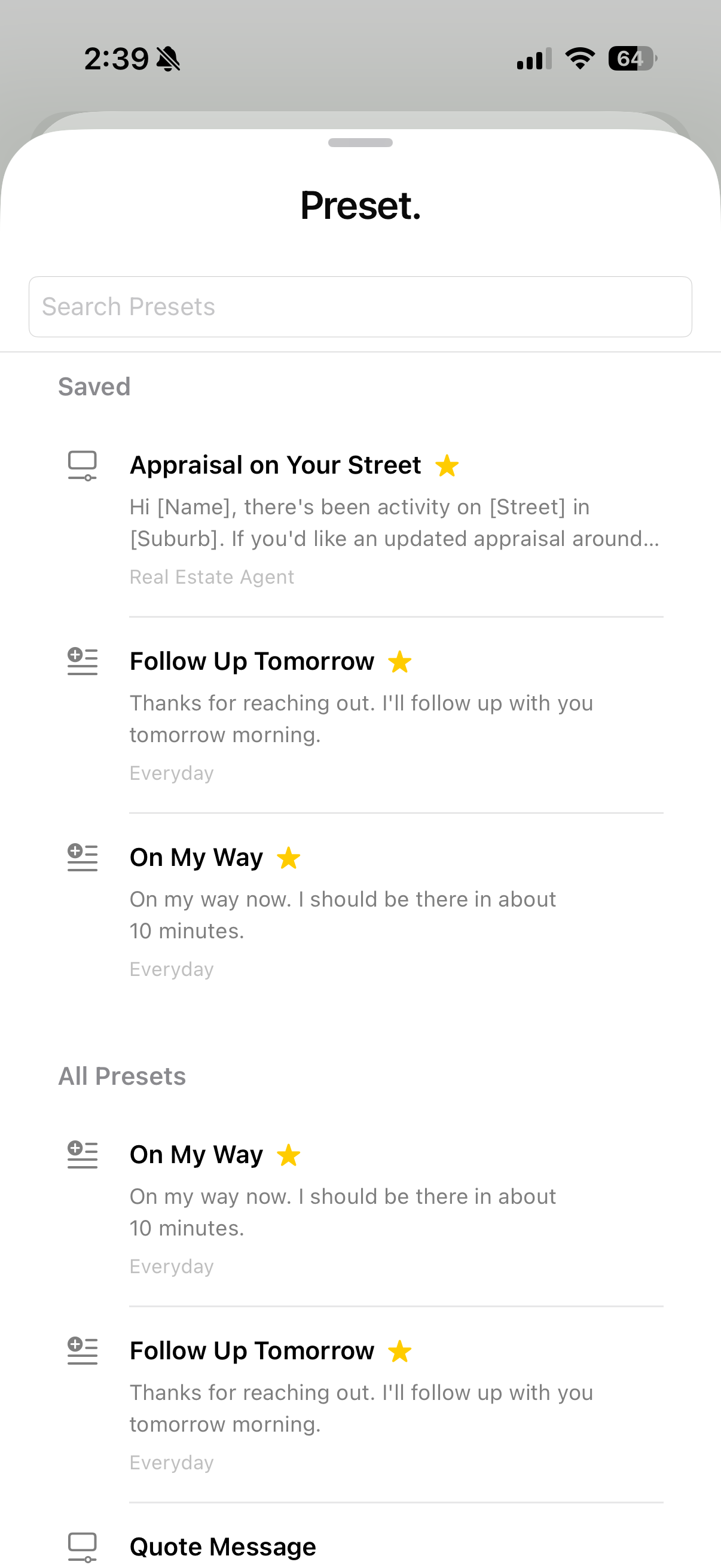
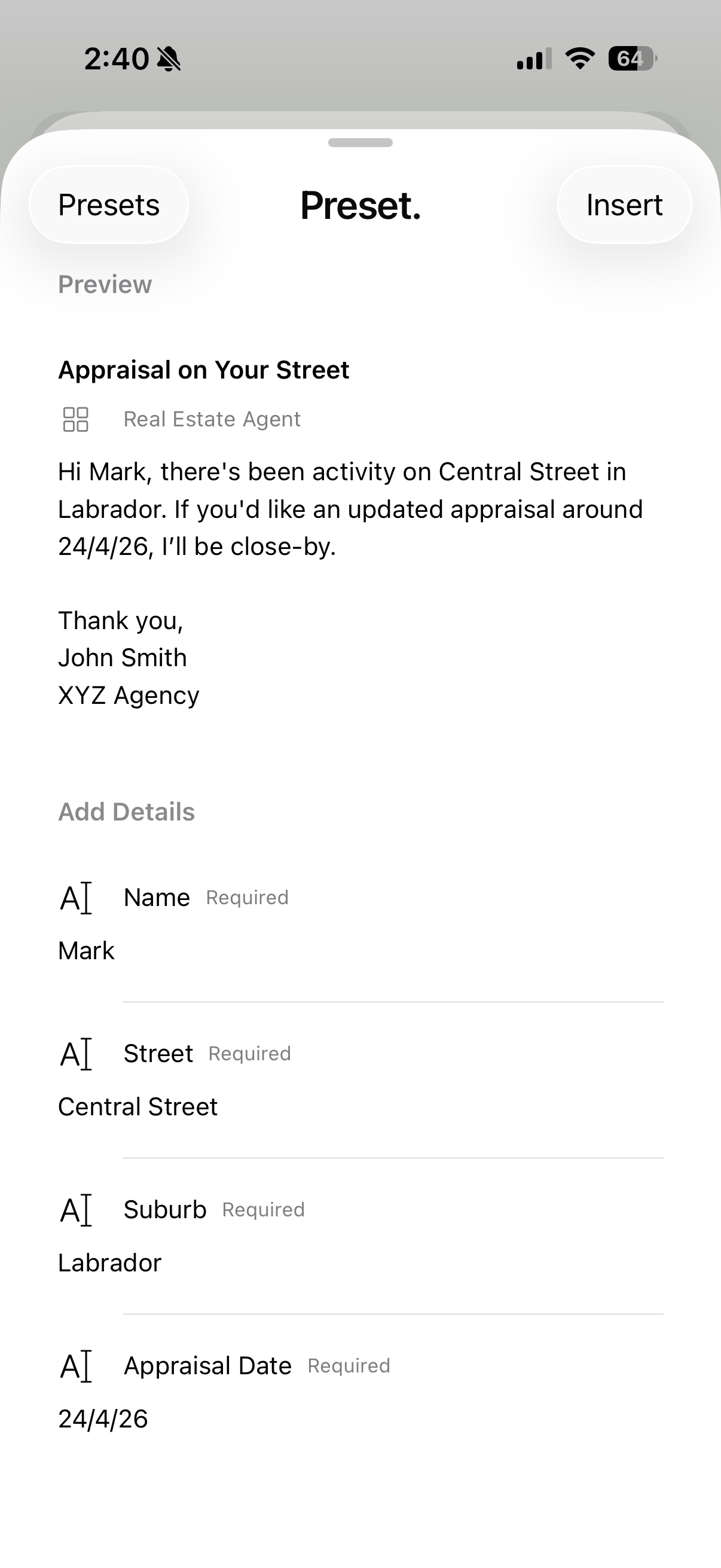
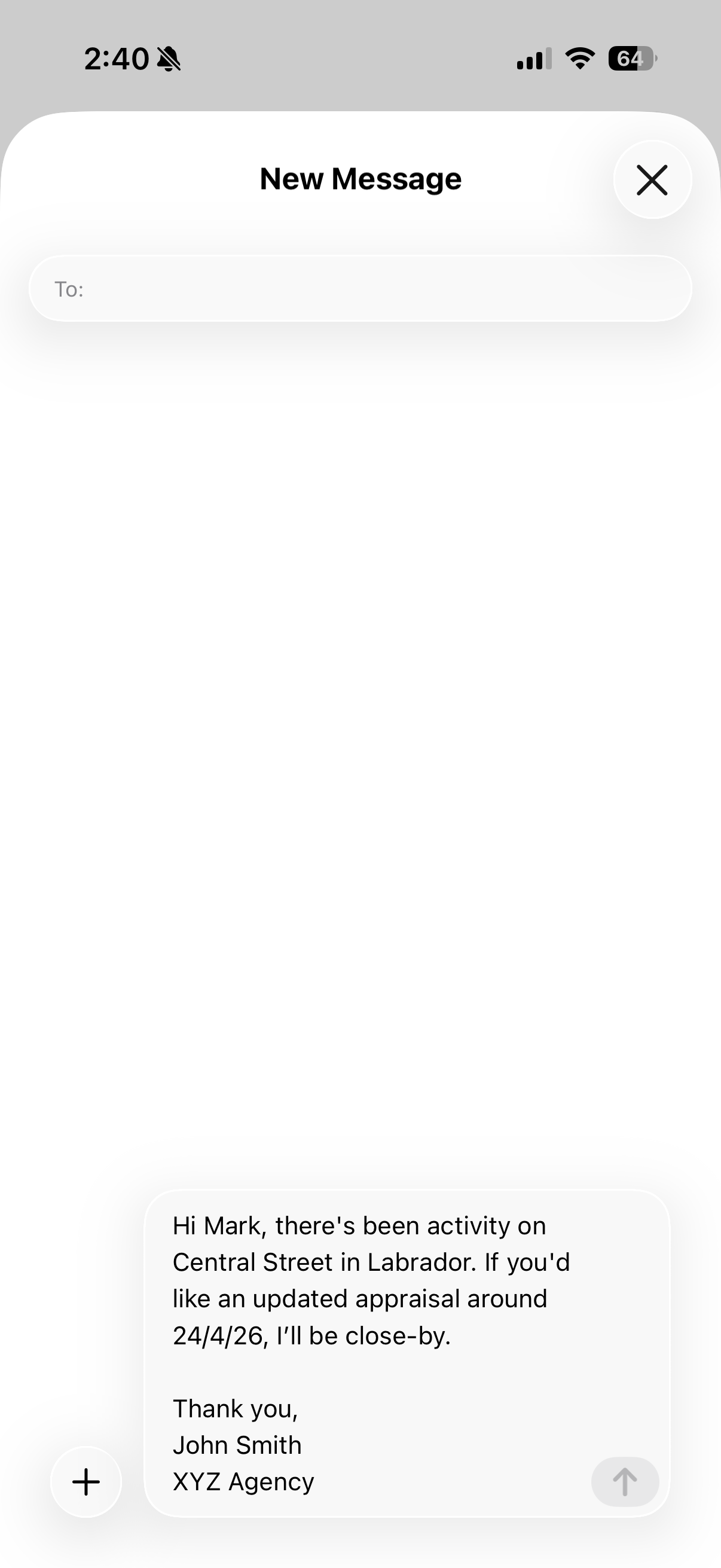
Build the preset once, then keep it ready.
TRY IT EARLY
Join the TestFlight when the invite is ready.
Try Preset. on iPhone, use it in real conversations, and send back the rough edges that still need work.
Join the TestFlight
Open the invite on your iPhone to install Preset from TestFlight.